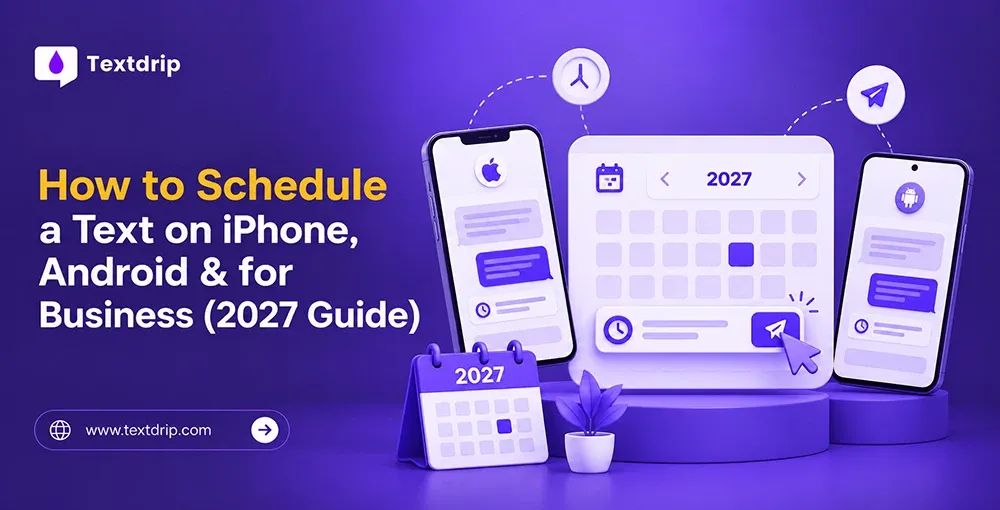
Most teams start with their phones when they need to schedule a text message. It’s quick, convenient, and works well for one-to-one messages. But the moment you need to involve multiple teams, workflows, or phone lines, the system breaks.
If you want to send a text message to a group, both Android and iOS have restrictions when it comes to scheduling texts for multiple recipients. If you need to schedule a text message to 200 customers reminding them about tomorrow’s appointment, Android and iOS aren’t built to do that. Your phone also can’t automatically send follow-up or reminder messages, and it doesn’t provide a record of what went out.
This guide shows you how to schedule a text message on iPhone and Android, step by step. Then, we’ll cover how to schedule text messages for your business, including how to send to an entire list at once.
In this blog, you’ll learn:
- How to schedule a text on iPhone with Send Later (or Shortcuts on older phones)
- How to schedule a text on Android with Google Messages
- Where phone-based scheduling falls short for businesses
- How to schedule texts at scale with Textdrip and which rules to follow
By the end, you’ll know which method best fits your needs.
TL; DR:
- Wondering how to schedule a text? Both iPhone and Android phones let you do it without installing an additional app.
- To schedule a text message on iPhone, open Messages, click on +, choose Send Later, select a date and time, type your message, and click Send. You need iOS 18 or later and iMessage for this, and it has a limitation of one recipient per message and a 14-day window.
- On Android, open Google Messages, write your message, then press and hold the Send button to choose when you want it sent.
- Neither iPhone nor Android supports recurring scheduled text messages or broadcasts, and you can’t create a log or audit trail.
- A personal device scheduling system breaks here.
- To schedule texts at scale for businesses, run SMS campaigns, or automate reminders, you need an automated SMS marketing platform like Textdrip.
What is a Scheduled Text Message?
A scheduled text message is a message you write in advance and set to send at a specific date and time. When the scheduled date and time arrive, your business messaging platform automatically sends the message.
Here are some key benefits of scheduling text messages:
- You have more time to create the perfect text message.
- You can easily edit or cancel the message if plans change or an event is canceled.
- You never forget to send important reminders or follow-ups.
- Pre-planning of seasonal SMS campaigns becomes easier.
- Timely reminders can help reduce no-shows and missed appointments, saving you time and money.
- You can reach out to clients conveniently based on the collected data about them.
Also Read: Best Time to Send SMS Marketing for Maximum Engagement.
Can You Schedule a Text on iPhone?
Yes, you can schedule a text on an iPhone if your phone runs iOS 18 or later. Send Later is a built-in feature for scheduling texts, but it needs iOS 18 and iMessage. If you have iOS 17 or an earlier version, use the Shortcuts app. Read on to learn the step-by-step process for both.
How to Schedule a Text on iPhone
To schedule a text on an iPhone, you can use Apple’s built-in Send Later feature, available on iOS 18 and later. While it isn’t ideal for business use cases, it is useful when you need to reach someone at a specific time.
Here’s how you can schedule a text message using Send Later.
Method 1 - Using the Send Later Feature

Image Source: Link
You need iOS 18 or later and iMessage to use this feature. You can schedule up to 14 days ahead. Follow these steps.
- Open the Messages app on your iPhone.
- Open a chat or start a new conversation.
- Click the + button next to the text box.
- Click Send Later.
- Click the time shown to open the scheduler. Pick a date and time.
- Type your message and click the send arrow.
The scheduled message appears with a dashed outline until it’s time to send. The text message will also be delivered even if all your devices are offline at the scheduled time.
One thing to note here is that scheduled text messages are encrypted and stored on Apple’s servers only until they are sent. Once a message is delivered, it is removed from Apple’s servers.
However, the Send Later feature has some limitations. It isn’t designed to broadcast or send messages to multiple people. You can’t schedule recurring messages more than 14 days in advance. Send Later also works with iMessage, so scheduled messages can only be sent to recipients using iMessage.
In short, if you need to schedule reminder text messages for multiple recipients, you’ll need a business texting platform.
Method 2 - Shortcuts App (iOS 13 to iOS 17)

Image Source: Link
If you use iOS 17 or an earlier version, the Send Later feature isn’t available. Instead, you can use the Shortcuts App. Here is how you can use scheduled SMS with the Shortcuts app.
- Open the Shortcuts app -> Automation
- Click on New Automation -> Time of Day (Choose the time and how often it should run)
- Add the Send Message action.
- Enter the recipient and write your message.
- Turn off “Ask Before Running” so the automation fires on its own.
This method can support recurring messages but only when you want to send the same message on a daily, weekly, or monthly schedule. Also, automation can misbehave if your phone is in low-power mode or under certain system restrictions.
The only advantage of this method is that it does not have a 14-day cap, unlike the Send Later feature, so you can schedule a message much further in advance.
Want to learn how to edit or cancel a scheduled text message? Read Apple’s official support guide.
How to Schedule a Text on Android
Android texting apps like Google Messages and Samsung Messages have built-in message scheduling features that let you send a text message at a specific date and time. The exact steps vary slightly depending on your phone’s manufacturer and messaging app.
How to Schedule a Text in Google Messages

Image Source: Link
Follow these steps to schedule a text in Android using Google Messages.
- Open Google Messages.
- Start a new conversation or choose the existing one.
- Type your message.
- Press and hold the Send button.
- Pick one of the suggested times or choose your own date and time.
- Confirm by clicking Send.
How to Schedule a Text in Samsung Messages

Image Source: Link
Here is how you can schedule a text in Samsung Messages.
- Open Samsung Messages.
- Start a new conversation or open an existing chat.
- Type your message.
- Click the “+” icon.
- Choose “Schedule Message.”
- Set the date and time.
- Click Done -> Send.
Your phone will send the message automatically at the time you selected.
These message scheduling Android apps work well for sending one-off messages to friends, family, or coworkers. However, if you need to send a message to a lot of people at once, run an SMS marketing campaign, or set up recurring messages, you’ll need a dedicated SMS platform like Textdrip, which has SMS automation, scheduling, and contact segmentation features.
Note: Samsung shut down its own Messages app in the US on July 6, 2026, for phones running Android 12 or newer . Phones running on Android 11 or older are not affected.
Why Phone Scheduling Breaks Down for Businesses
Scheduling text messages on your phone works perfectly in one-to-one conversations, but once you scale up and want to send text messages to a large group, set up team access, or set recurring schedules, personal device scheduling can’t handle that.
With phone-based scheduling, you can’t upload your contact list and automatically send personalized messages to each one. You can’t set automated follow-up, give team access, or get delivery reports. Additionally, you don’t get any opt-out tools.
Sending 500 appointment reminders this way would take all day. Here is where a business SMS platform like Textdrip comes in.
Phone Scheduling vs. Business SMS Platform Scheduling
| iPhone | Android | Business SMS Platform (Textdrip) | |
| Built for | Personal texts | Personal Texts | Business Texts |
| Number of recipients | One | One | Entire contact list |
| Follow-up sequences | No | No | Yes |
| Team visibility | No | No | Yes |
| Personalization | Manually | Manually | Yes |
| Opt-out handling | None | None | Built-in |
| Where you schedule | Phone only | Phone only | Dashboard and mobile app |
| Cost | Free | Free | Paid plans |
| Compliance control | None | None | Full |
Takeaway: Your phone works well for one text, but an automated SMS marketing platform works for many.
How to Schedule a Text for Business at Scale
Business texting includes contact lists, rules, and deadlines. A platform like Textdrip handles all these with ease. To schedule a text message in Textdrip, follow these steps.
- Log in to your Textdrip dashboard.
- Click Schedule Message in the left menu.
- Choose your contact.
- Select the date and time.
- Write your message and save the schedule.
If you want to schedule a recurring drip campaign, follow the steps below.
- Log in to Textdrip. If you have not created a Textdrip account, create it.

- Now, click on Drip Campaign -> Add Campaign.

Write the campaign name, set the campaign type, and choose event drips.

- Create a perfect text message.

Once you’ve crafted the text message, set the event type, time, days, and end event date. You can set it daily, weekly, monthly, or yearly based on your requirements. Now, click the Save button.
In short, if you need to send more than one text, Textdrip lets you send drip campaigns and bulk texts.
Schedule Texts at Scale With Textdrip
Now you know how to schedule a text on iPhone and Android. iPhone has the Send Later feature, and Android has a hold-to-schedule button in Google Messages. Both are perfect for scheduling one text at a time or sending one-off personal text messages. But for businesses that need to schedule text messages for their entire contact lists, send automated follow-ups and reminder text messages, and want to remain TCPA and 10DLC compliant, a platform specifically built for business communication helps. That’s what Textdrip is for.
You can schedule texts from the dashboard or using their mobile app . You can also send bulk texts and run drip SMS campaigns . And the best thing is that this platform is 10DLC compliant and offers a 14-day free trial with 1,000 credits.
Book a free demo to see Textdrip in action.
FAQ's
Does the recipient know a text was scheduled?
No, the recipient won’t know a text was scheduled. It arrives at the time you choose, like any other text.
Is there a way to schedule a text message for business?
Yes, use an automated SMS platform like Textdrip to schedule a text message for business.
Can I schedule a text message to multiple contacts at once?
You can’t schedule a text message to multiple contacts at once from your phone. For that, you need to use an automated SMS platform like Textdrip. With it, you can even send bulk texts to all your subscribers.