Quick Answer: How to text from computer: You can send text from computer using business texting platforms like Textdrip, built-in tools like iMessage or Google Messages, phone-link apps, SMS gateways, an SMS API, Google Voice, VoIP services, carrier websites and apps, and free SMS websites. However, for a business, a texting platform is the safest and fastest choice.
There was a time when texting at work raised eyebrows, but these days, business texting has become a key communication channel for saving time and reaching customers quickly. For teams that are constantly on the go, SMS has become the norm, whether it’s a quick discussion with a client or launching a full-scale SMS marketing campaign.
Still, not everyone wants to send messages via phone, because using a small screen and constantly switching between mobile and computer can be distracting. When you send text from a computer, you get a full keyboard, a bigger screen, and your chats in one place.
This blog answers a key question that most businesses have: how to text from a computer. So, without further ado, let’s get started.
9 Ways Businesses Can Send Text From Computer
There are various ways you can text from a computer. Here are nine ways, along with a quick overview of each.
Send Text From Computer Using an SMS Marketing Platform Like Textdrip
If you run a business or need to send texts at scale, an online SMS marketing platform like Textdrip is the most effective way. With Textdrip, you get impressive features like bulk texting, scheduling, SMS automation, two-way texting, custom keywords, drip campaigns, and much more.
To use this platform, you will need:
Paid Textdrip Plan (You can book a free demo or take a free trial)
Computer or PC
How to Get Started:
Sign up for a Textdrip plan.
Log in to your Textdrip account.

Import or add your contacts.

Compose a message and schedule it for later.
This way is ideal if you want more advanced texting features, integrations with other software, an easy-to-manage messaging workflow, and dedicated support for business texting. Textdrip has Android and iOS apps, and you can even send text from computer using it.
For business texting, this method is ideal, but if you want to use it to send texts to friends and family, another option is ideal.
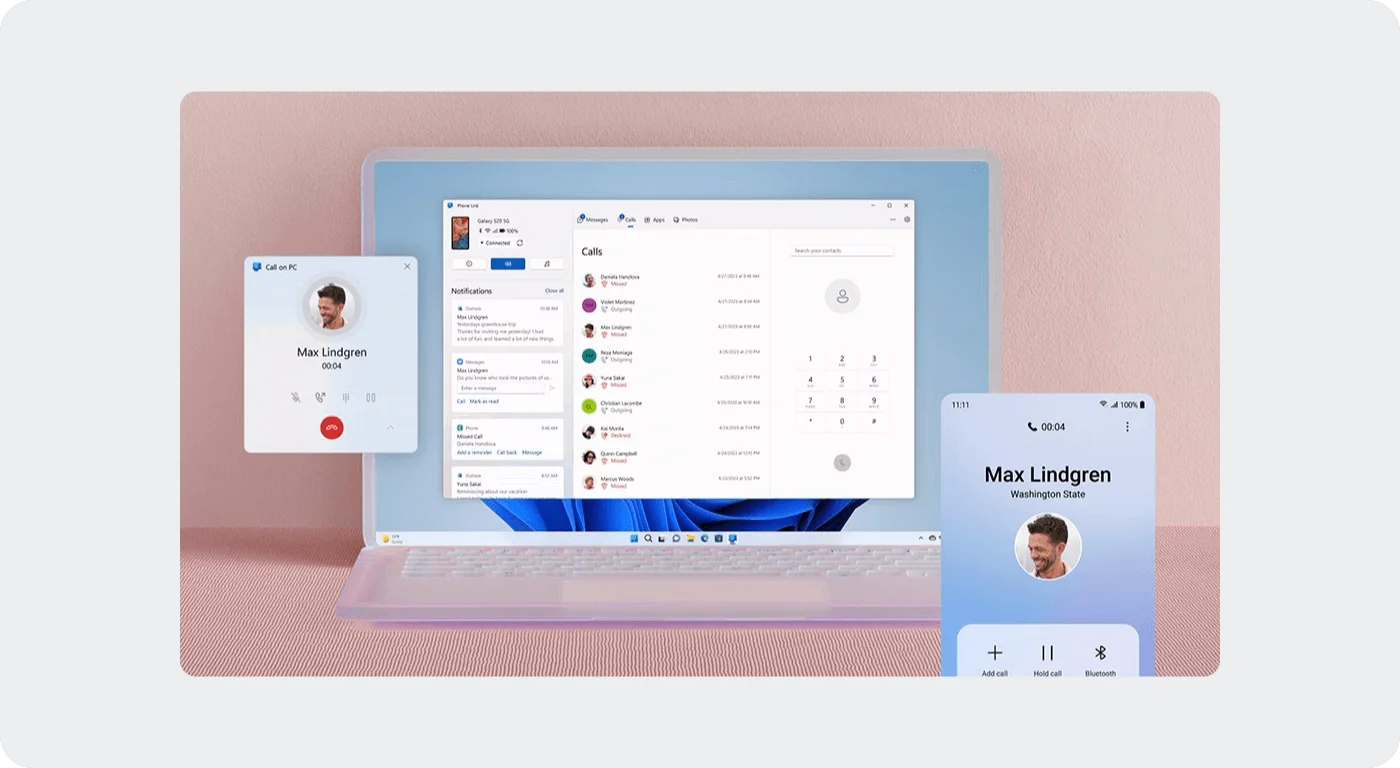
Texting from Computer Through Windows Phone Link

Image Source: Link
Microsoft offers a convenient way to send text from computer using its phone link app. With it, you can send and receive text messages on a larger screen.
To use it, you will need:
- Microsoft Account
- PC connected to the same network as your phone.
- Windows app link on your Android or Apple device.
How to Get Started:
- Open the Phone Link app on your PC.
- Link your phone by scanning a QR code or by following the on-screen instructions.
- Once linked, go to Messages -> New Messages to start sending a text message or chat.
Microsoft’s Phone Link acts as an extension of your phone with features like setting it to DND remotely. However, if you need more advanced texting features involving multiple users or automated messages, you will need a business texting platform.
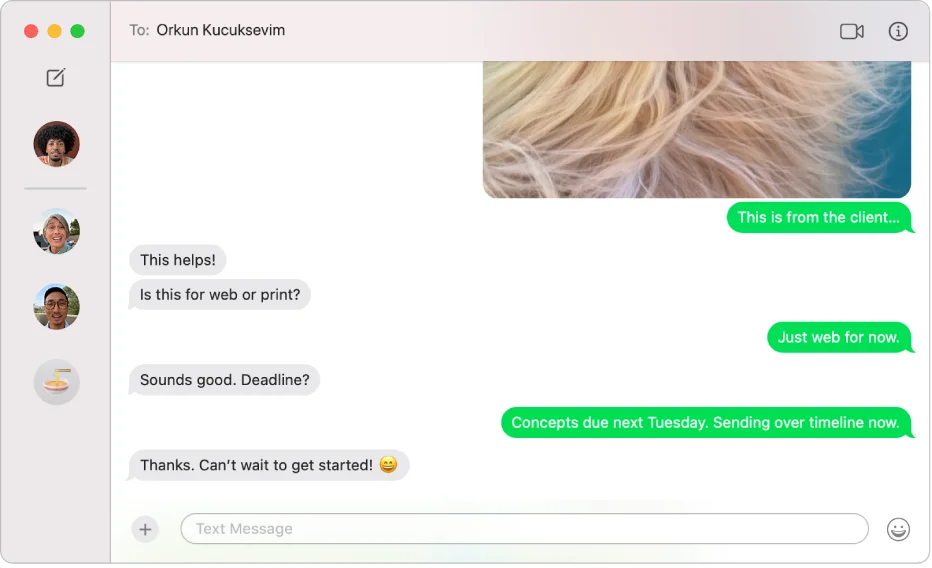
Send SMS from Computer via Mac’s Message App (for iPhone Users)

Image Source: Link
If you love using the Apple ecosystem, you can easily send text messages to your clients from a Mac computer.
To use it, you will need:
- An iPhone
- An Apple ID
- A Mac computer or laptop connected to mobile data or Wi-Fi.
How to Get Started:
- On your iPhone, go to Settings -> Messages -> Text Message Forwarding and choose your Mac from the listed options.
- Open Messages on your Mac. After that, sign in with your Apple ID.
- Tap on New Messages -> Choose contact name or enter phone number and hit Send.
Apple’s computer messaging app has all the right features required for one-on-one texting and fits right in with your other Mac software. However, it is not ideal if you want to do mass texting or need advanced texting features.
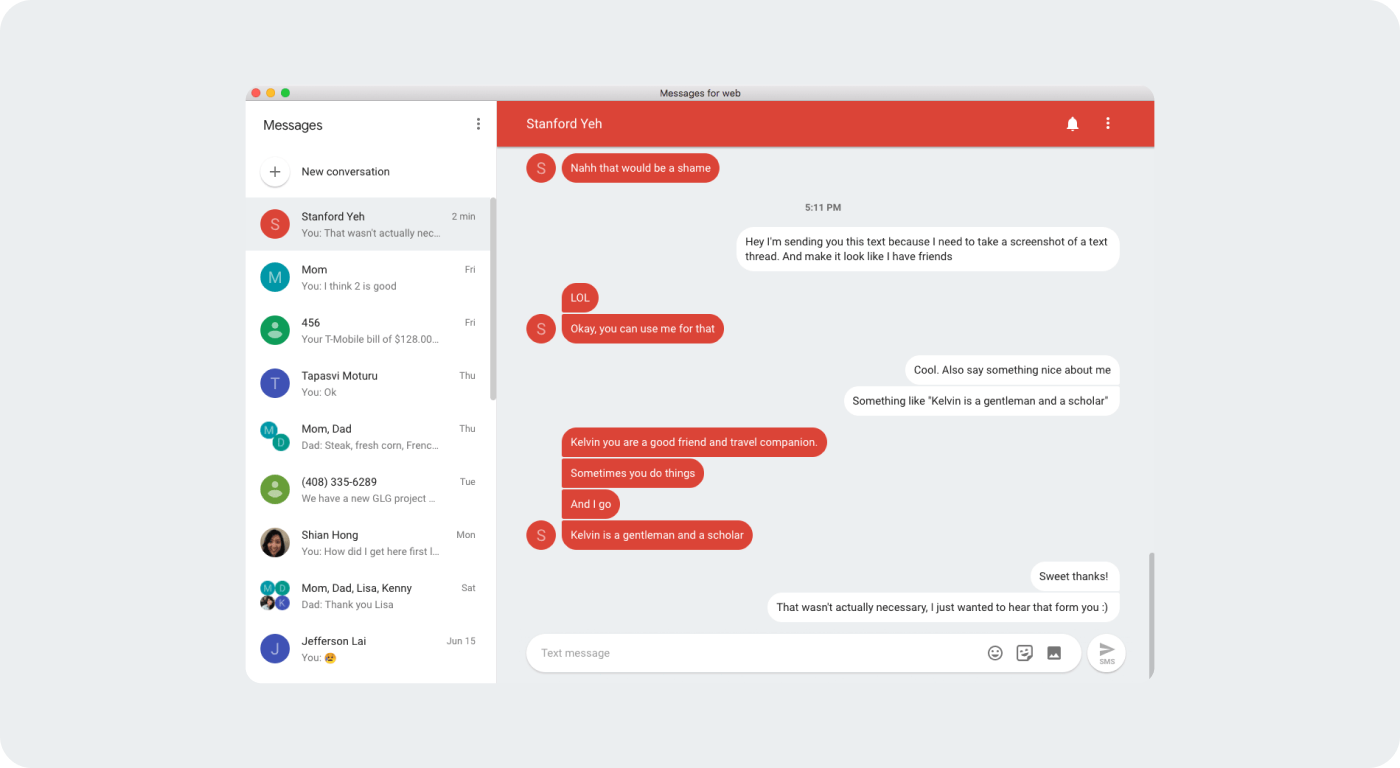
Send Text Message From Computer Through Google Messages on the Web (For Android Users)

Image Source: Link
Are you an Android user? You can send SMS from computer using Google’s browser-based messaging app.
To use it, you will need:
- An Android phone with a Wi-Fi or mobile data connection.
- The Google Messages app.
- A PC with a Wi-Fi connection.
- A Chrome, Mozilla, Safari, Firefox, or Microsoft Edge web browser.
How to Get Started:
- Open the Google Messages app.
- Click on Device Pairing.
- On your computer, go to messages.google.com/web in a browser.
- Scan the QR code with your phone to get started.
Once your PC is linked, you can text directly from your desktop.
Text From a Computer Through Google Voice

Image Source: Link
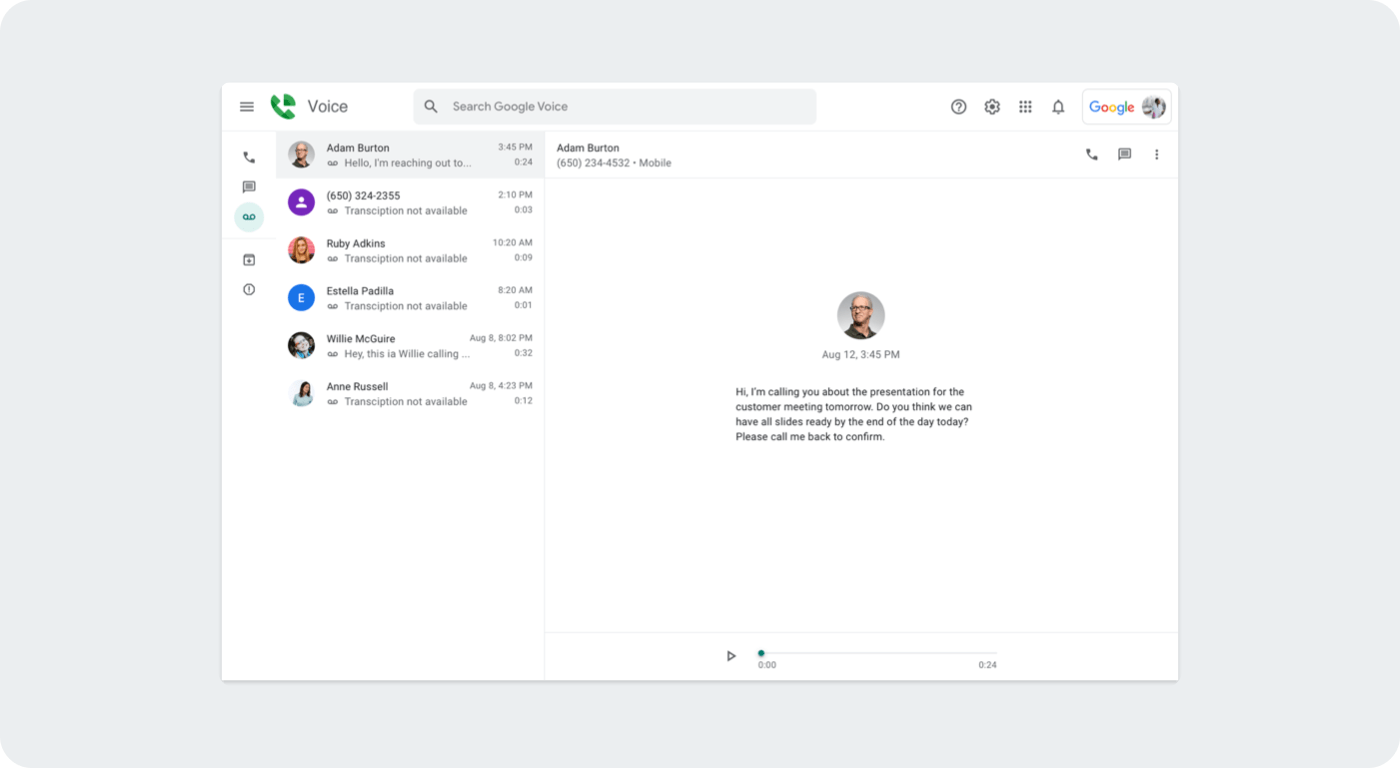
If you want to do one-on-one texting using your computer, Google Voice is a good option. But don’t use it for bulk texting; otherwise, your account will be suspended.
To use it, you will need:
- A Google Voice account.
- A PC with mobile or Wi-Fi data.
How to Get Started:
- Log in to your Google Voice account.
- Select Messages in your dashboard.
- Select Send a new message.
- Enter your phone number.
- Craft your text message and click Send.
Google Voice has more advanced features than Mac and Google’s basic texting app, such as supporting multiple numbers and users, so businesses can do one-to-one texting conveniently. However, it does not support bulk texting campaigns. So, if you want to send text messages at scale, you need a different method.
Send Text From a Computer Via Email

Image Source: Link
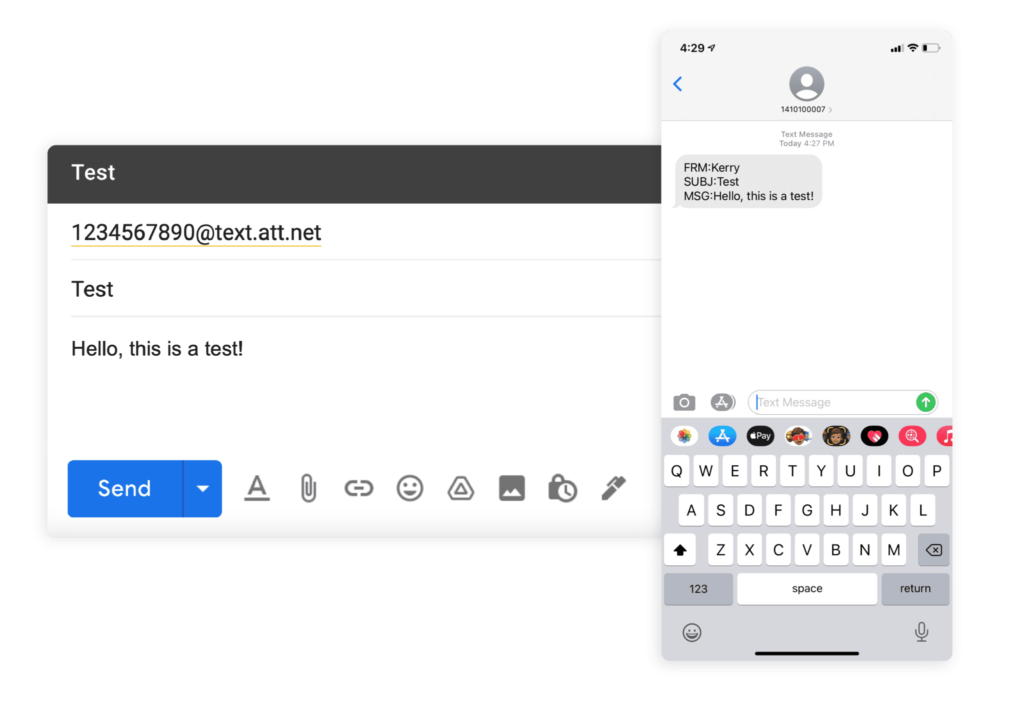
If you have an email address and know the phone service provider of the person you want to contact, you can send a text from a computer using email.
How to Get Started:
- Open a new Email.
- Type the 10-digit phone number + carrier name in the “To” field.
- Write your message and click Send.
The best thing about this method is that you don’t have to download any new app. However, this texting method is ideal for announcements or alerts, but using it, you can’t handle two-way conversations gracefully.
Send SMS from Computer Using VoIP Services

Image Source: Link
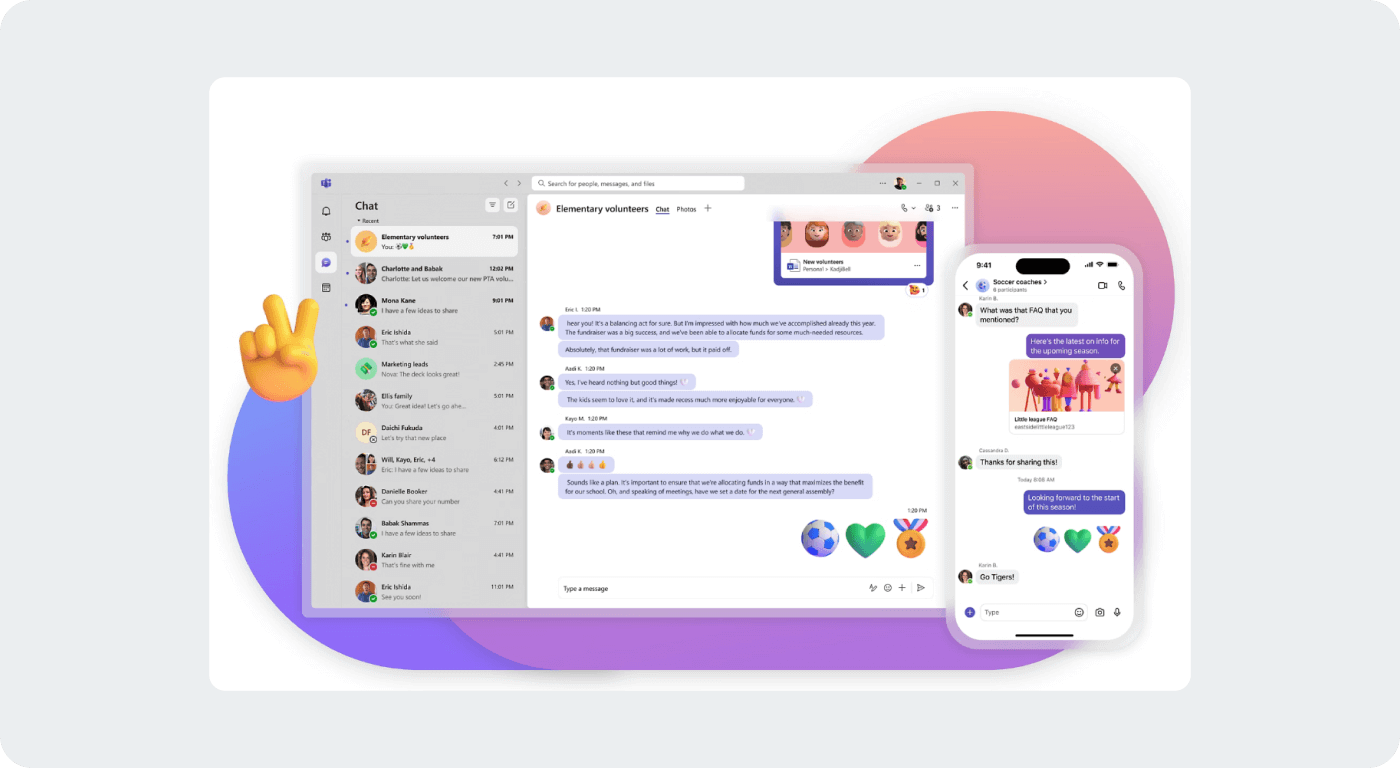
There are many VoIP service providers that let you send SMS from a computer. All you need is an internet connection.
How to Get Started:
- Download the VoIP app (Skype, Google Voice) of your choice.
- Log in to the app to get a VoIP number.
- Write a message in the text field and send it to a mobile number.
Using VoIP services, you can send single text messages easily. With free VoIP services, you won’t get advanced features like automation, scheduling, large-scale campaigns, and more.
Text From a Computer Via Free SMS Websites

Image Source: Link
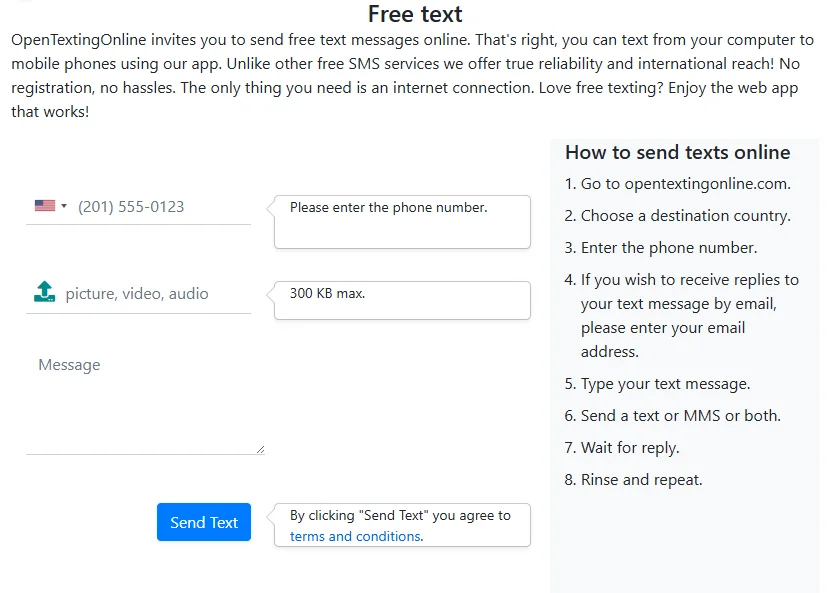
Some free SMS websites like OpenTextingOnline allow you to send text messages directly from your browser. However, they are useful only for personal use. They don’t support group texting or MMS. Check the site’s reputation before you share your personal information.
Texting From a Computer Using Carrier Websites and Apps
Mobile carriers like Verizon and AT&T allow subscribers to send text messages from their websites or dedicated desktop apps.
How to Get Started:
- Log in to your carrier’s website, like My Verizon or My AT&T.
- Search for options like Text Online or Messages.
- Compose your text message and send it to any phone on the same network.
Some carriers have desktop apps like T-Mobile DIGITS. These make it super easy to send text messages from a PC or Mac.
Try Textdrip to Send SMS From Computer
Sending text messages from a computer offers businesses a cost-effective and efficient way to communicate with customers and employees by streamlining their communication. It is helpful for businesses that want to do more than just send occasional messages, like organizing contacts, scheduling SMS in advance, and managing opt-in methods. As texting grows in popularity, combining SMS marketing with the strengths of an SMS marketing platform like Textdrip lets you reach your customers anytime, anywhere.
Textdrip is a 10DLC-compliant SMS platform. With more than 7,000 happy customers and counting, we’re well-equipped to level up your communication strategy.
Try Textdrip for free to get started with a reliable service to send texts from your computer, or contact us if you have any questions. You can also explore our integrations to see how simple it is to add an SMS campaign to your current tech stack.
FAQs
How can I text from my computer without a phone?
You can use a cloud-based platform like Textdrip. You get a business phone number that works entirely in your web browser or the Textdrip desktop app, so you can send, receive, and schedule texts without needing your phone at all.
How much does it cost to send SMS from a computer?
Personal apps like Phone Link are free. Textdrip starts at $19.99/month on Spark Starter, where each SMS segment costs ($34.99) and Elite ($74.99) cuts that to $0.012 per segment and includes free 10DLC registration.
How can I text someone from my computer for free?
Google Messages for web, Mac Messages, and Phone Link are free for personal texting. For business, Textdrip offers a 14-day free trial with 1,000 credits, so you can send texts from your computer before being charged.
What is the best way for a business to send SMS from a computer?
Use a business texting platform like Textdrip instead of a personal phone. It lets you run bulk texts, drip campaigns, and scheduled messages from your computer, with AI-written texts, CRM integrations, and a shared team inbox.